

How to Use AI to Create Stunning Pinterest and Instagram Photos for Your Etsy Shop

If you’re selling vintage treasures on Etsy and your marketing photos still look like you took them in a hurry on your kitchen table circa 2019, no judgment, we’ve ALL been there! I have something that is going to genuinely change your life.
AI image tools have gotten so good that you can now take a simple product photo and turn it into a scroll-stopping Pinterest pin or a gorgeous Instagram image in about five minutes. I’m talking lifestyle shots, styled scenes, moody backgrounds, text overlays – the whole thing. No fancy camera. No photographer. No wrestling with Photoshop for three hours while crying.
I recently walked a gal through this exact process – she emailed me with a completely different question, but when I peeked at her vintage product photos, I knew we needed to have a little chat. And what happened next was honestly so fun I had to share it with all of you.
Here’s exactly how to use AI to create stunning AI product photos for your Etsy shop!
1. Your Vintage Product Photos Might Be Costing You Sales (And You Don’t Even Know It)
Here’s the thing about product photos for Etsy versus marketing photos for Pinterest and Instagram – they are NOT the same thing, and treating them like they are is leaving money on the table.
Your Etsy listing photos need to show exactly what the item is. Clear, accurate, honest. Buyers want to know what they’re actually getting. That’s non-negotiable.
But for Pinterest and Instagram? You’re not just showing a product. You’re selling a feeling. A lifestyle. A “oh my gosh, I NEED that” moment. And a flat photo against a white wall is not going to do that.
The good news is that you don’t have to reshoot everything. You just need the right tool.
Action steps:
- Take an honest look at the photos you’ve been using for social media marketing
- Ask yourself: does this make someone FEEL something, or does it just show the item?
- If it’s the latter, keep reading – we’re fixing that today
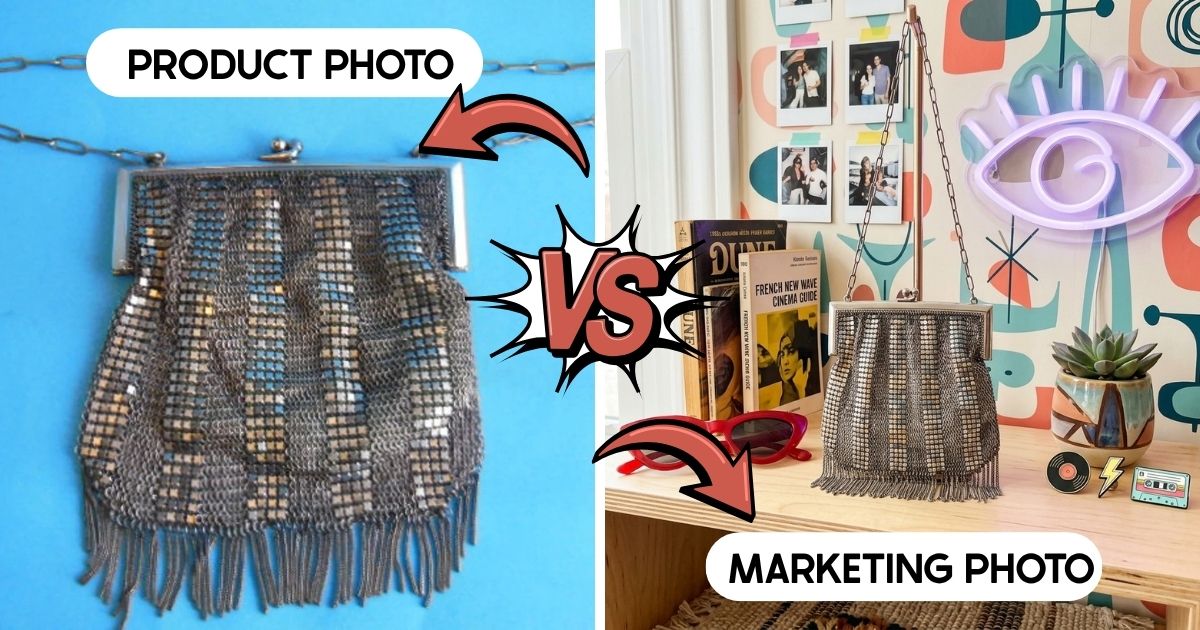
2. The Difference Between Etsy Photos and Marketing Photos (This Changes Everything)
Let me break this down clearly because once you really get this, your whole Pinterest strategy will shift.
Etsy photos = product documentation. Accurate, detailed, multiple angles. This is what the buyer needs to feel confident purchasing.
Marketing photos = emotional storytelling. These are the images you use on Pinterest, Instagram, and in your blog posts to attract new eyeballs and make people fall in love with what you sell.
For Etsy, you need great product shots. For marketing, you need images that make someone stop their scroll, grab their coffee, and say “wait, where is that from?”
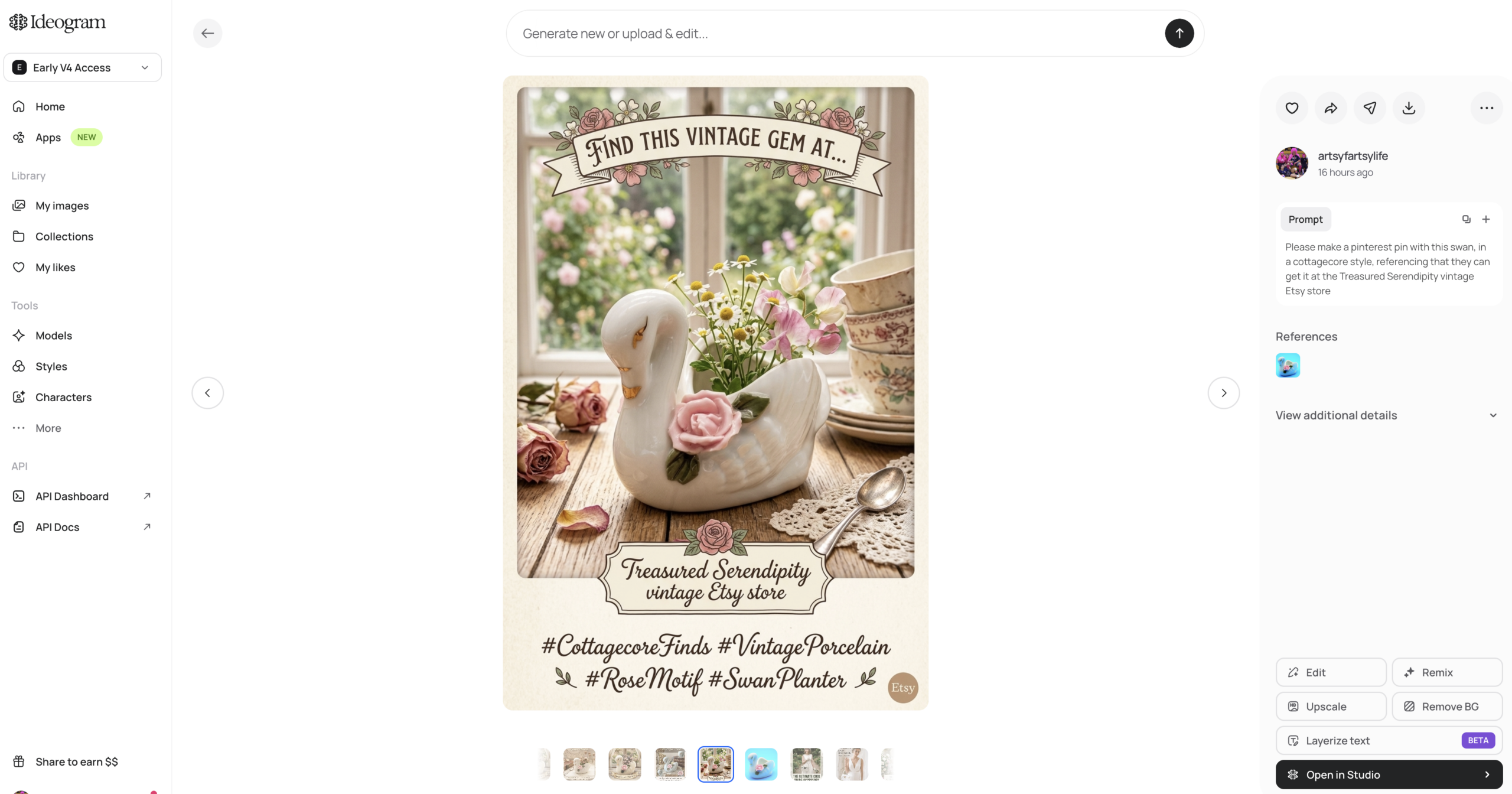
AI tools, specifically Ideogram, which is my current obsession – let’s you take YOUR actual product and drop it into a gorgeous styled scene. A vintage chain mesh bag being carried by a cool woman headed to a nightclub. A sweet ceramic swan planter nestled in a cottagecore-inspired setting. A lucite handbag in the hands of a chic bride. All from a single product photo you already have!
Action steps:
- Separate your product photos into two folders: “Etsy listings” and “Marketing/social”
- Identify which products you want to create AI marketing images for first
- Start with your best sellers or your most visually interesting pieces
3. Why Ideogram Is the AI Tool Vintage Sellers Should Be Using
I have tried a LOT of AI image tools. Like, an embarrassing amount. And Ideogram is the one I keep coming back to, especially for product marketing.
Here’s why it works so well for vintage sellers specifically:
When you upload your product as a reference image, Ideogram actually keeps your product in the scene. It doesn’t just create a vibe – it puts YOUR actual item in the image. That chain mail bag? It’s in there. That lucite handbag? In the picture. The little swan planter? Still recognizably that swan.
That’s huge. Because the whole point is to market the thing you’re actually selling, not some generic version of it.
It also has a free plan that lets you test everything out before you commit to a subscription. (I am a creator for them, so if you do grab a paid plan through my link I make a small commission but I genuinely use this tool and love it, so there’s that!)
Action steps:
- Head to Ideogram.ai and create a free account
- Poke around the interface before you try anything – just get comfortable
- Download one product photo from your Etsy shop to use as your first test image
4. How to Get Started: Sizes, Settings, and What to Know First
Before you start generating images, there are a few things you need to know so you don’t waste time creating the wrong-sized images for the wrong platform.
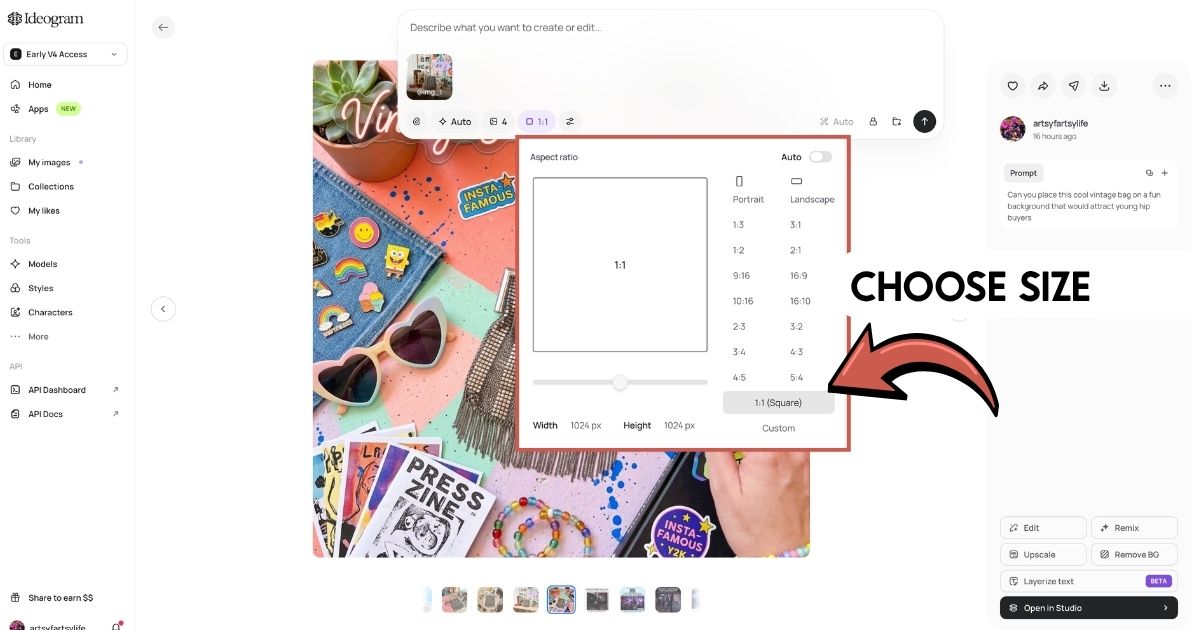
For Pinterest: You want a 2:3 ratio (tall, vertical pin). This is the format Pinterest loves and the one that performs best in the feed.
For Instagram: You want a 1:1 ratio (square post). This works beautifully for your grid and for Reels thumbnails.
Pick your platform first, then set your size before you do anything else. It’s a two-second decision that saves you from recreating everything later.
Also, and this is new and important… Pinterest is now asking creators to flag AI-generated and AI-modified content. When you upload your pins to Pinterest, you’ll see a checkbox asking if the image is AI-modified. Check it if you used AI (which you did). They’re also asking separately if an AI-generated person appears in the image. Answer honestly. Pinterest is not punishing AI content – they just want transparency.
Action steps:
- Decide which platform you’re creating for first (Pinterest or Instagram)
- Select the correct ratio in Ideogram before uploading anything
- Note the AI disclosure checkboxes so you’re ready when you upload to Pinterest
5. Step One: Download Your Product Photo and Upload It as a Reference Image
This is where the magic starts. Here’s exactly how to do it:
Go to your Etsy shop and right-click on your product photo. Save it to your desktop.
(If it saves as something other than a JPEG – like a HEIC or a random format – open it in your photo viewer and export/save it as a JPEG. Mac users, this is Preview > Export. Windows users, open it in Photos and save a copy as JPEG.)
Then go to Ideogram, select your size, and upload that photo as a reference image – not just a regular upload. The reference image option is what tells Ideogram to actually include your product in the final scene rather than just using it as visual inspiration.
Once your image is uploaded, write your prompt. This is where it gets fun.
A good starting prompt looks something like: “Can you make a Pinterest pin featuring this [describe your product] being carried by a [describe your ideal buyer in a scene]?”
Be specific. Give it context. Tell it where the person is, what the vibe is, what the mood should be. The more detail you give, the better your results.
Action steps:
- Save your product photo as a JPEG to your desktop
- Upload it in Ideogram as a reference image (not a standalone upload)
- Write a prompt that includes your product description AND a scene/lifestyle context
6. Creating Pinterest-Worthy Pins That Stop the Scroll
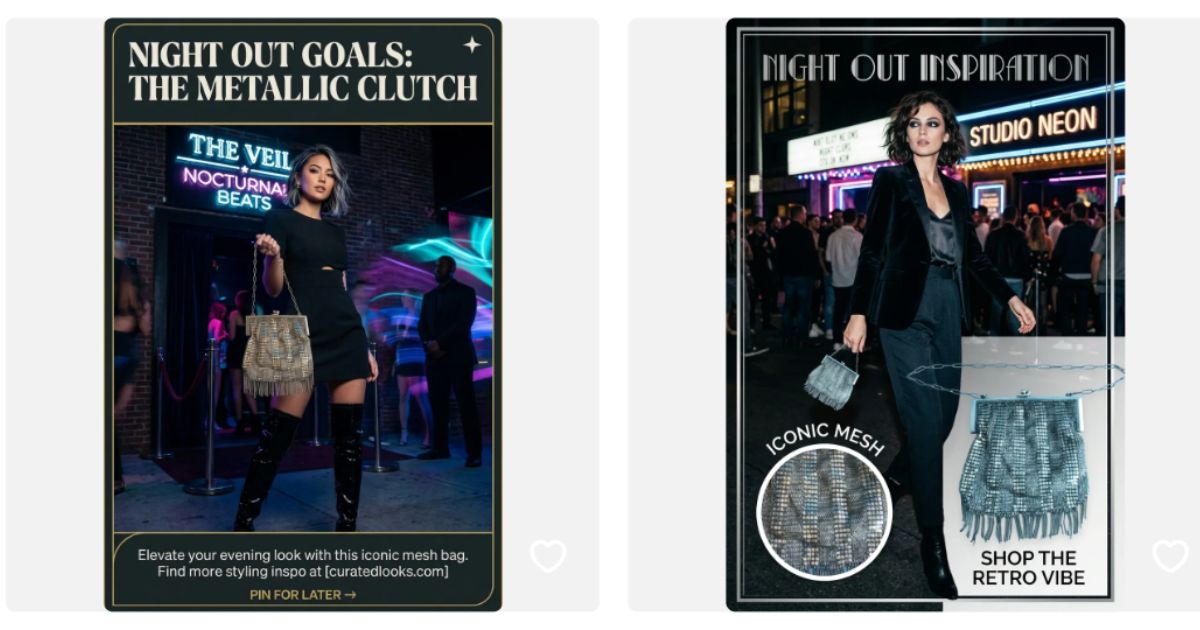
Okay, this is where it gets genuinely exciting. When I ran the vintage chain mail bag through Ideogram with the prompt “can you make a Pinterest pin featuring this pocketbook on a cool fashion woman going to a nightclub” – the results were chef’s kiss.
It generated four options, and three of them were immediately usable. Text overlays like “Night Out Goals” and “Shop the Retro Vibe” appeared automatically. The product was right there in the scene. The vibe was exactly what a vintage lover on Pinterest would stop scrolling for!
That’s the goal. You want an image that makes someone pause, feel something, and want to click.
A few tips for writing Pinterest-specific prompts:
- Include the aesthetic category if you know it (cottage core, grandma core, brutalist, old money, dark academia – these aesthetics are BIG on Pinterest right now)
- Ask for lifestyle context: a person, a setting, an activity
- Don’t be afraid to try multiple prompts – it’s fast and the results vary a lot
Not every result will be perfect. Sometimes the proportions are off, sometimes the product looks a little bigger than it is in real life. That’s fine. Generate four, pick the two or three you love, and move on.
Action steps:
- Write a prompt that includes the aesthetic and a lifestyle scene
- Generate a batch and download your favorites as JPEGs (smaller file size than PNG)
- Plan to disclose AI modification when you upload to Pinterest
7. Creating Instagram-Ready Square Images for Your Shop
Pinterest pins and Instagram posts call for totally different energy, and that’s okay – Ideogram handles both!
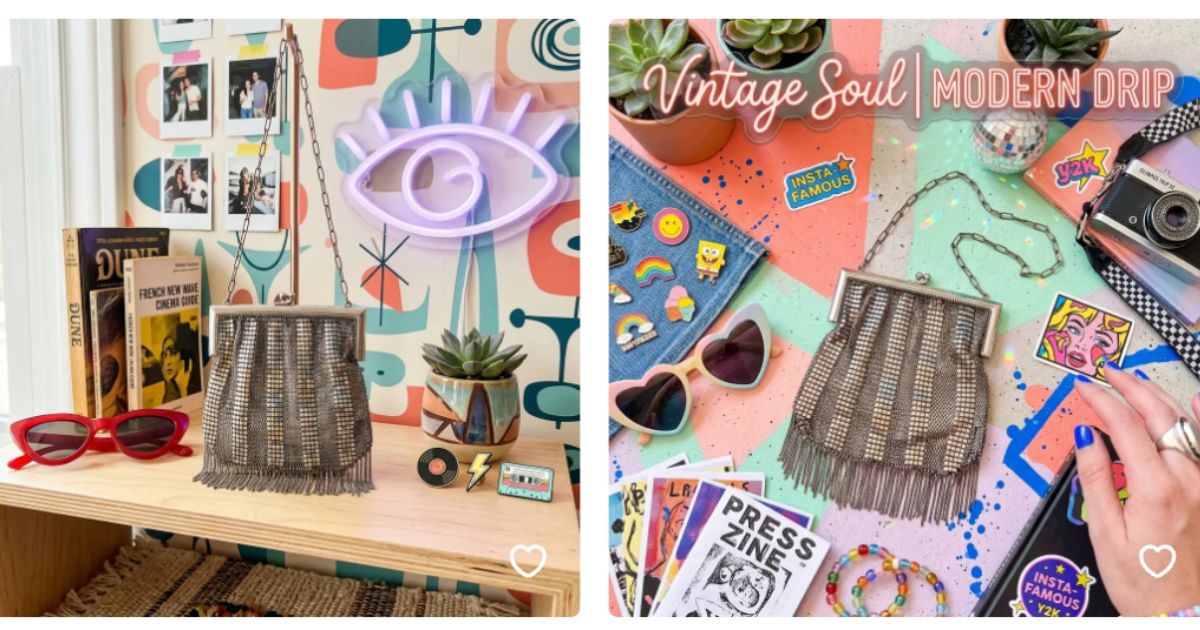
For Instagram, switch to the 1:1 square format and shift your prompt away from the “lifestyle woman” angle toward something more product-forward and visually striking.
Instead of a person holding the bag, try: “Can you place this cool vintage bag on a fun background that would attract young hip buyers?”
The results tend to be cleaner, more editorial, and more “product on a styled background” rather than “product in a scene.” Both are great – they just serve different purposes.
Instagram loves content that feels current and visually cohesive. So if you’ve got a shop aesthetic (cottagecore, maximalist, minimal vintage), try to work that into your prompts too.
Action steps:
- Switch to 1:1 format in Ideogram for Instagram content
- Write a simpler, more product-forward prompt for square images
- Check if your generated Instagram image matches your shop’s overall aesthetic before posting
8. What to Do When the AI Gets It a Little Wrong (It Happens – Don’t Panic)
Real talk: not every image is going to be a winner. Sometimes the AI will:
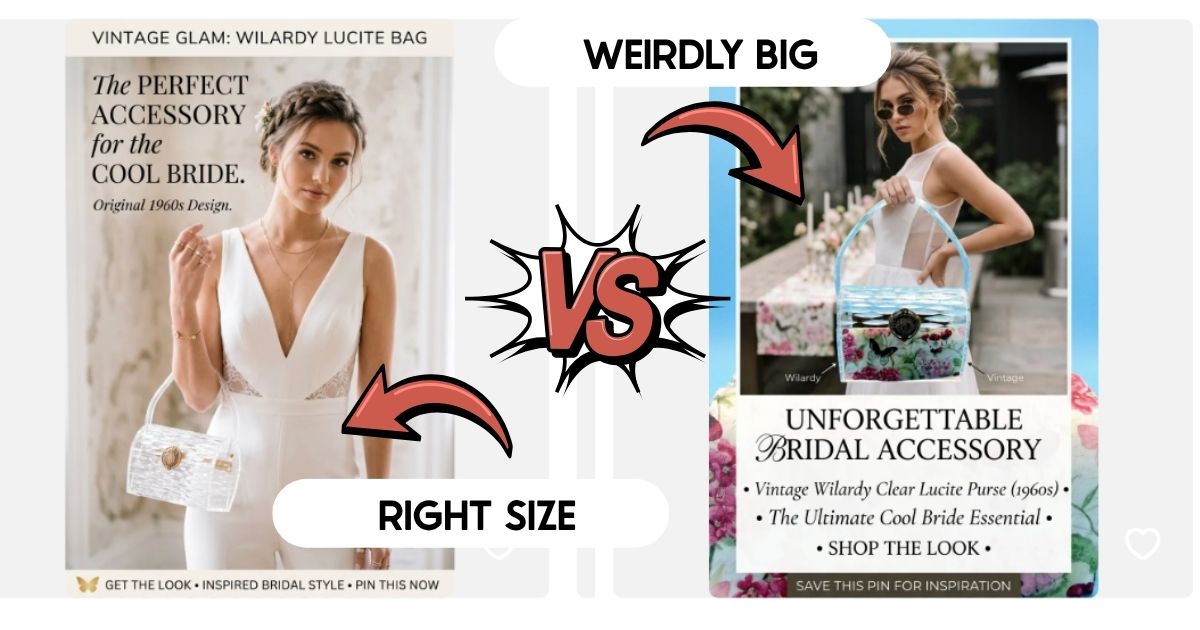
- Make your product look way bigger than it actually is
- Pull in a weird background element
- Add text overlays you don’t want
- Create a scene that just doesn’t feel right for your brand
This is completely normal. I watched this happen in real time with the lucite handbag – it was pulling in background elements from the original product photo and the results weren’t as clean as the other items.
The fix? Just try a different prompt. Change the setting, adjust the description, try a completely different angle. Sometimes “young cool bride carrying this bag” lands differently than “fashion woman at a garden party.” Try both. You’ll find your winner.
You don’t need every image to be perfect – you need three or four that are great. Generate in batches and cherry-pick the best ones.
Action steps:
- Don’t give up after one bad result – try a minimum of two different prompts per product
- If the proportions are off, try describing the size in your prompt (“small handbag,” “petite clutch”)
- Keep your winners in a dedicated folder organized by product name
9. The One-of-a-Kind Vintage Seller’s Secret: Always Link to a Category Page, Not a Single Listing
This is the tip that most vintage sellers miss – and it can genuinely save your Pinterest strategy from quietly falling apart over time.
Here’s what happens: you create a gorgeous AI-generated Pinterest pin of your vintage swan planter. It’s adorable. You link it directly to that listing. The pin gets repinned a hundred times over the next six months.
And then you sell the swan.
Now every one of those repins leads to a dead link. Pinterest hates dead links. Your potential buyers get frustrated. And all that beautiful traffic you built goes nowhere.
The fix is simple: link your pins to a category page in your Etsy shop instead of the individual listing. So instead of linking to the swan planter specifically, you link to your “Vintage Home Decor” or “Ceramic Collectibles” section. Buyers still land in your shop – they just see everything that’s available right now, not one sold-out item.
Check your Etsy shop sections and make sure you have URLs for each category ready to go before you start uploading your pins. It’s a tiny change that makes a huge difference for long-term traffic. For more Pinterest strategy for Etsy sellers, check out my post on Doing Pinterest For Etsy Sellers!
Action steps:
- Go to your Etsy shop and copy the URL for each of your category/section pages
- Use those URLs when linking your Pinterest pins – NOT individual listing URLs
- Do a quick audit of any existing pins and update the links if needed
10. How to Add Your Shop Name or URL to Your AI Marketing Images
One of the small but mighty things you can do in your prompts is ask Ideogram to include your shop name or URL in the generated image. And yes – it actually works. (Most of the time. AI text can be a little adventurous sometimes, but it’s gotten SO much better.)
In the video, I showed how the swan planter image actually came back with the shop name right on the pin. That’s free branding, right on the image itself, which means even if someone screenshots your pin and shares it somewhere else, your shop name is still there.
To do this, add it to your prompt: “Please include ‘Visit [Your Shop Name] on Etsy’ at the bottom of the image.”
Pro tip: if you sell one-of-a-kind items, have the URL point to your category page, not the individual listing – for the same reason we talked about in tip #9. Learn more about writing great Pinterest descriptions in my post on How To Write Product Pin Descriptions for Etsy and Shopify.
Action steps:
- Add your shop name or Etsy URL to your prompts
- Double-check the spelling in the generated image (AI text isn’t always perfect)
- If the text looks off, regenerate or use a simple text overlay tool like Canva to add it manually
11. Your New Workflow: From Product Photo to Pinterest Pin in Under 10 Minutes
Okay, let’s put it all together. Here’s the whole process, start to finish:
- Pick your product – start with your best sellers or most visually interesting pieces
- Save the photo as a JPEG to your desktop
- Go to Ideogram, select your platform size (2:3 for Pinterest, 1:1 for Instagram)
- Upload as a reference image
- Write your prompt – include the product, the aesthetic, and a lifestyle scene
- Generate and review – download your favorites as JPEGs
- Upload to Pinterest or Instagram – remember to check the AI disclosure box on Pinterest
- Link to your category page, not the individual listing
That’s it. Ten minutes, maybe less once you get the hang of the prompts. And the results? Way better than anything you could do with a quick re-shoot and a plain background.
I’ve been in marketing for over 20 years, and Ideogram is genuinely one of the most exciting tools I’ve seen for small product sellers. The playing field is leveling out in a big way – a one-woman vintage shop can now create marketing images that look like they came from a professional photo studio. For even more ideas on building your vintage business online, check out The Ultimate Guide to Selling Antiques & Vintage Finds Online.
Action steps:
- Save this post (or the checklist in your head) and try it with ONE product today
- Don’t overthink the prompt – just describe what you want and see what happens
- Iterate from there – every prompt teaches you something for the next one
If you’ve been putting off your Pinterest marketing because you didn’t have the “right” photos – this is your sign! You have what you need. You just need to put it through Ideogram.
Go make something gorgeous for your shop!
The post How to Use AI to Create Stunning Pinterest and Instagram Photos for Your Etsy Shop appeared first on Marketing Artfully.
Source: https://marketingartfully.com/how-to-use-ai-to-create-stunning-pinterest-and-instagram-photos-for-your-etsy-shop/
Anyone can join.
Anyone can contribute.
Anyone can become informed about their world.
"United We Stand" Click Here To Create Your Personal Citizen Journalist Account Today, Be Sure To Invite Your Friends.
Before It’s News® is a community of individuals who report on what’s going on around them, from all around the world. Anyone can join. Anyone can contribute. Anyone can become informed about their world. "United We Stand" Click Here To Create Your Personal Citizen Journalist Account Today, Be Sure To Invite Your Friends.
LION'S MANE PRODUCT
Try Our Lion’s Mane WHOLE MIND Nootropic Blend 60 Capsules
Mushrooms are having a moment. One fabulous fungus in particular, lion’s mane, may help improve memory, depression and anxiety symptoms. They are also an excellent source of nutrients that show promise as a therapy for dementia, and other neurodegenerative diseases. If you’re living with anxiety or depression, you may be curious about all the therapy options out there — including the natural ones.Our Lion’s Mane WHOLE MIND Nootropic Blend has been formulated to utilize the potency of Lion’s mane but also include the benefits of four other Highly Beneficial Mushrooms. Synergistically, they work together to Build your health through improving cognitive function and immunity regardless of your age. Our Nootropic not only improves your Cognitive Function and Activates your Immune System, but it benefits growth of Essential Gut Flora, further enhancing your Vitality.
Our Formula includes: Lion’s Mane Mushrooms which Increase Brain Power through nerve growth, lessen anxiety, reduce depression, and improve concentration. Its an excellent adaptogen, promotes sleep and improves immunity. Shiitake Mushrooms which Fight cancer cells and infectious disease, boost the immune system, promotes brain function, and serves as a source of B vitamins. Maitake Mushrooms which regulate blood sugar levels of diabetics, reduce hypertension and boosts the immune system. Reishi Mushrooms which Fight inflammation, liver disease, fatigue, tumor growth and cancer. They Improve skin disorders and soothes digestive problems, stomach ulcers and leaky gut syndrome. Chaga Mushrooms which have anti-aging effects, boost immune function, improve stamina and athletic performance, even act as a natural aphrodisiac, fighting diabetes and improving liver function. Try Our Lion’s Mane WHOLE MIND Nootropic Blend 60 Capsules Today. Be 100% Satisfied or Receive a Full Money Back Guarantee. Order Yours Today by Following This Link.


| Visits: | 1,817,070,906 |
| Stories: | 8,663,477 |
Whistler Blowers, Insiders

