

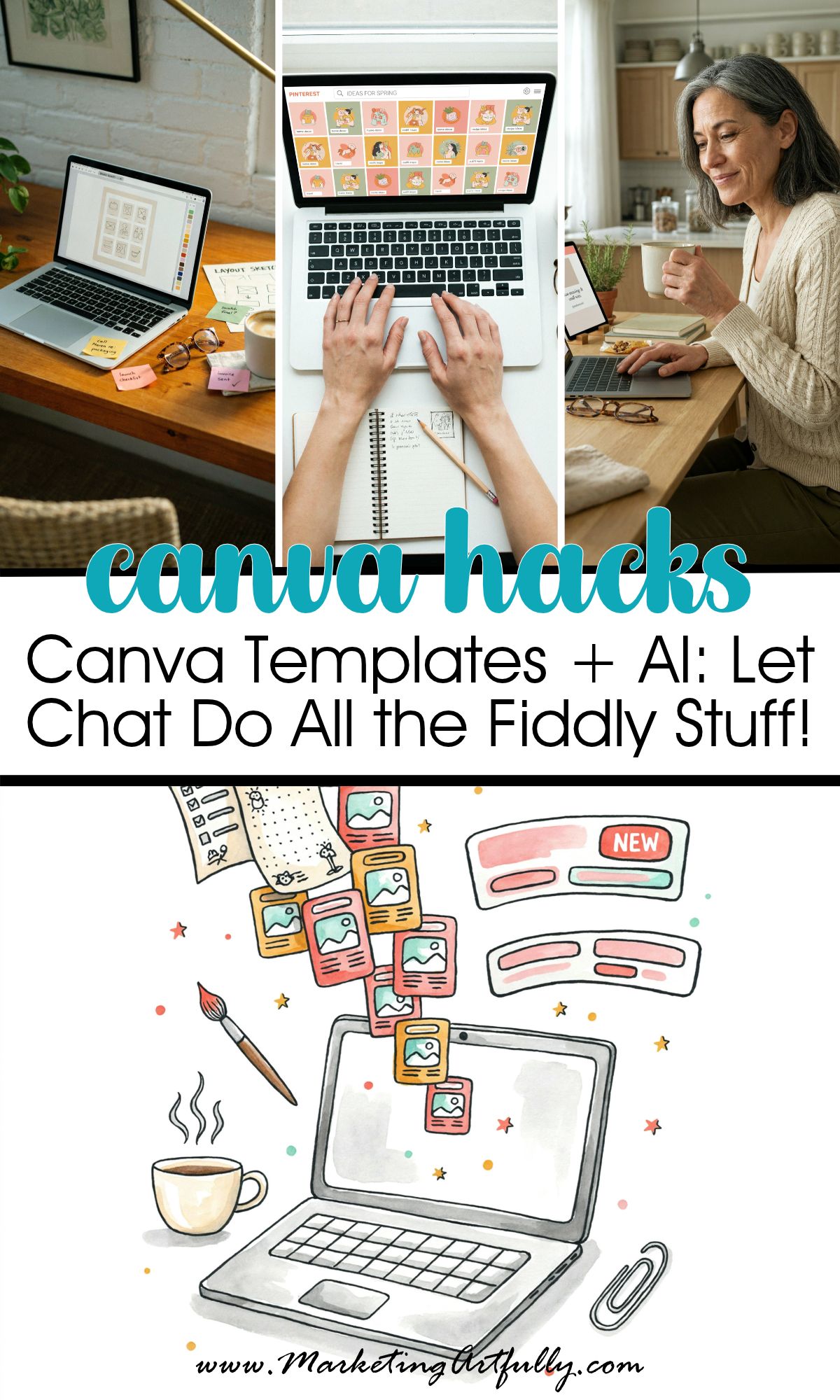
Canva Templates + AI... 11 Things My Chat Does in Canva So I Don't Have To

When I started hooking all my marketing tools up to AI, I had NO IDEA how much I could do with Canva connected to my chat! Think of this as a Canva tutorial with a twist… instead of showing you which buttons to click, I’m showing you how to get your chat to click them for you. 😉
I’m not going to walk you through every single thing it can do. These are the things I actually use and love with my Canva templates (plus a couple that surprised me!)
This post contains affiliate links. If you purchase anything, I earn a small commission at no extra charge to you. Check out my policies here.
11 Ways AI Makes My Canva Templates Work Harder
1. Swap Every Photo in Your Template at Once
The thing I love MOST about having Canva hooked up to my chat? It can take one of my templates, no matter what state it’s in, and turn it into a whole new design in a snap.
Case in point… here’s the roundup template I handed over. A few Thanksgiving table pics… and some Halloween leftovers. (What was I thinking?!)
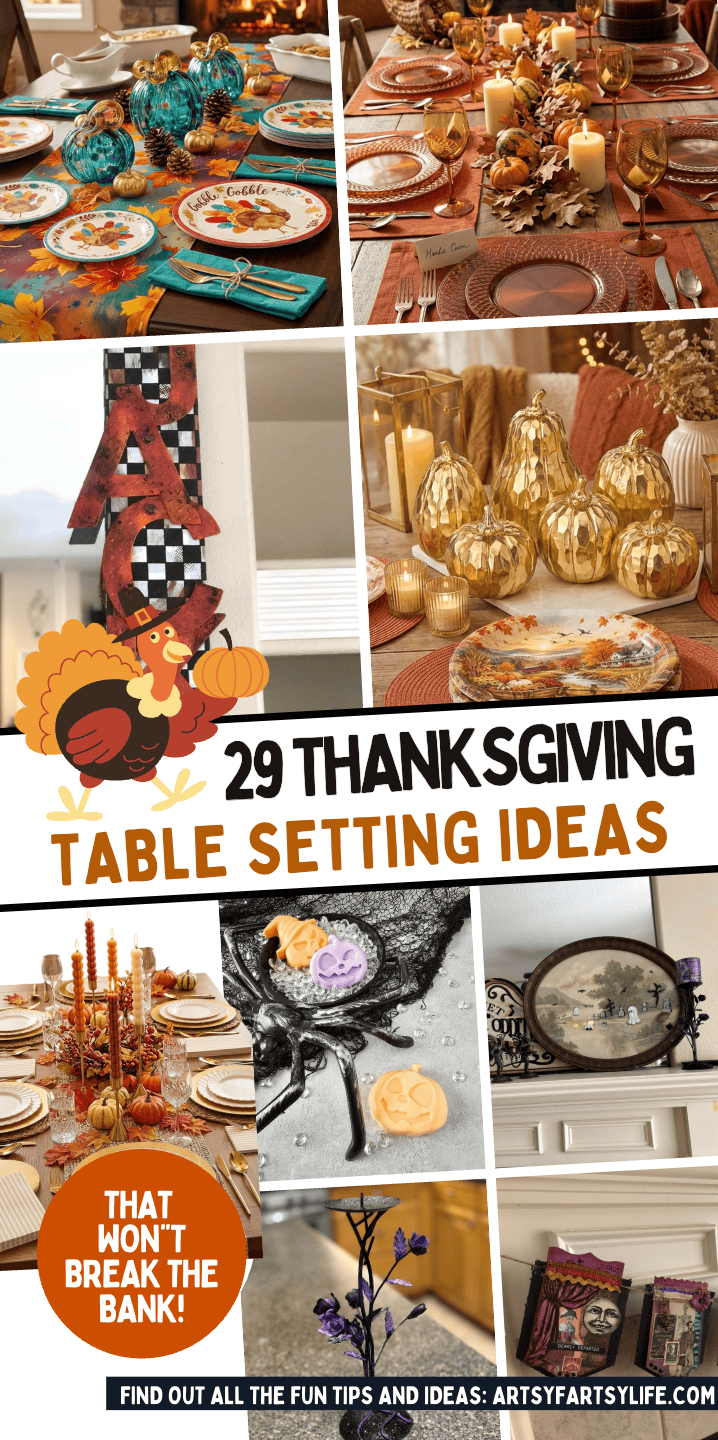
I uploaded my new Christmas photos, and every single photo slot got filled. No dragging, no dropping, no cropping each one by hand.
Do this today… Pick one old roundup pin template. Upload 6 to 10 new photos to Canva, then ask your chat to “swap all the photos in this design with my new uploads.”
2. Rewrite Your Title, Callout and Call to Action
Photos are only half the job. The words have to change too!
I gave my chat my new text and it dropped everything right where it belonged…
- Title… “13 Christmas Gifts Under $10″
- Callout… “So Cute It’s Ridiculous!”
- Call to action… “Last Minute Gift Ideas… ArtsyFartsyLife.com”
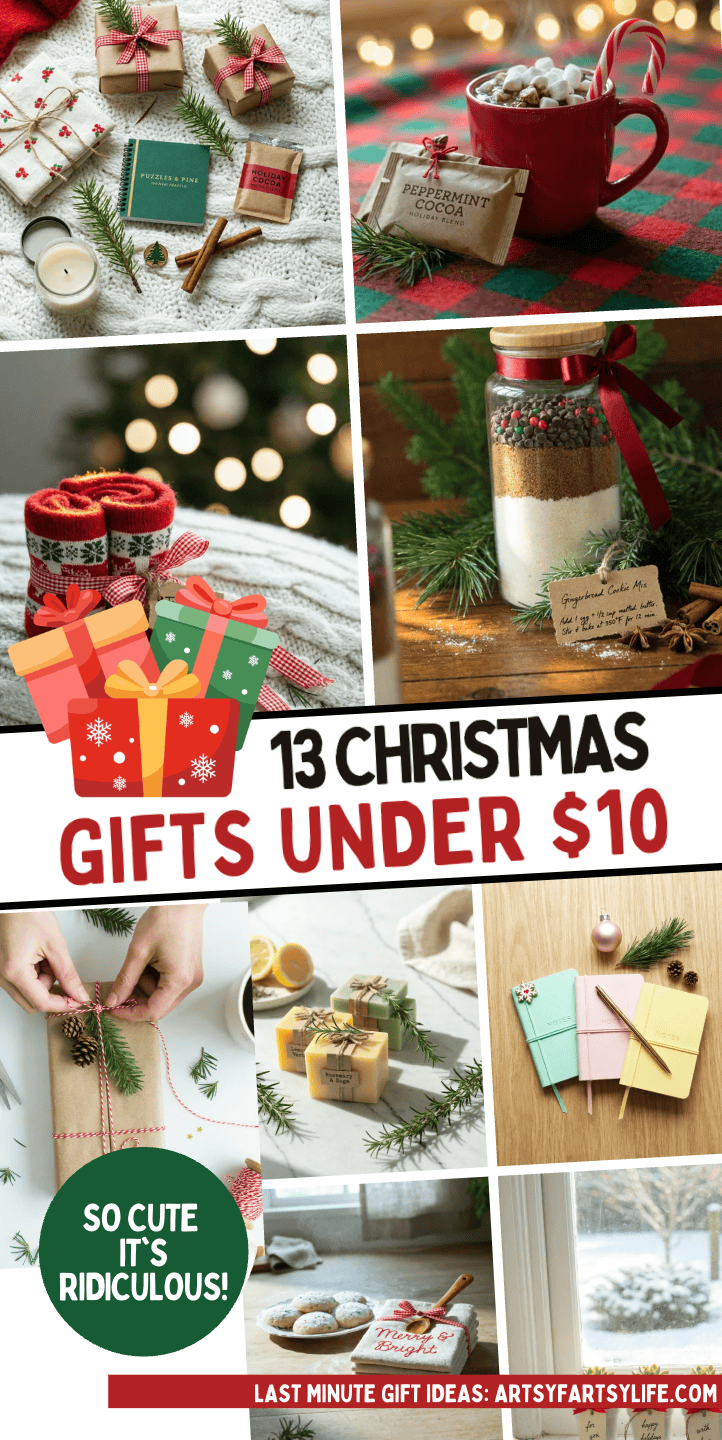
Five minutes, and a mismatched template became a brand-new pin that looks like I planned it all along.
Do this today… Have chat write your title, callout and call to action in a quick list before you start your design. Clear words in = clean design out.
3. Change Your Whole Color Scheme in a Snap
Changing colors by hand is the fiddliest job in Canva. You click a leaf. Then a dot. Then a heading. Then you find the one you missed. Sigh.
I gave my chat my hex colors, and my roundup went from pumpkin orange to Christmas red and green. Later I asked it to swap the dusty pinks on a worksheet for sage green, and poof… every leaf, dot and heading changed.
Do this today… Keep your brand hex colors in a note on your computer so you can paste them into your chat anytime. (No more guessing “was it the light pink or the lighter pink?”)
4. Stash Your Own Graphics in Uploads (So You Never Touch the Turkey)
The only thing my chat couldn’t change on that Christmas pin was the Thanksgiving turkey! I had to sully my own fingers and go find a Christmas graphic to swap in. Hahaha! Are you kidding me?!
Here’s why. Your chat can’t browse Canva’s Elements library, so it can’t go shopping for a new graphic. But if the graphic is already in your Uploads folder, it can swap it right in.
And honestly? That’s a GOOD thing. I download my own graphics from Creative Fabrica, and it makes my pins look like ME. When everyone else grabs the same Canva graphics, your pins start to blend in. Your own graphics make them stand out from all the slackers! 😉
Plus, once your chat is doing the fiddly work, you’ll have time to do more than you ever could before. More pins, more posts, more products… without more hours.
Do this today… Download 5 to 10 graphics for your next season or topic and drop them into Canva Uploads along with your photos. Then you’ll never have to touch the turkey!
5. Ask Your Chat to Critique Your Design
Mediavine just opened house ads, which means we can put our own images in those ad spots. And boy, have I been diddling around not wanting to bother making ads… sigh.
I started with my course image, so people would know exactly what they were getting the second they landed on the course page. Then I asked my chat to critique it and help me make it look more like an online ad and less like a course image. I had slapped some calls to action on it and it looked derpy!
Using my chat’s suggestions, I went from this (a great course image)…
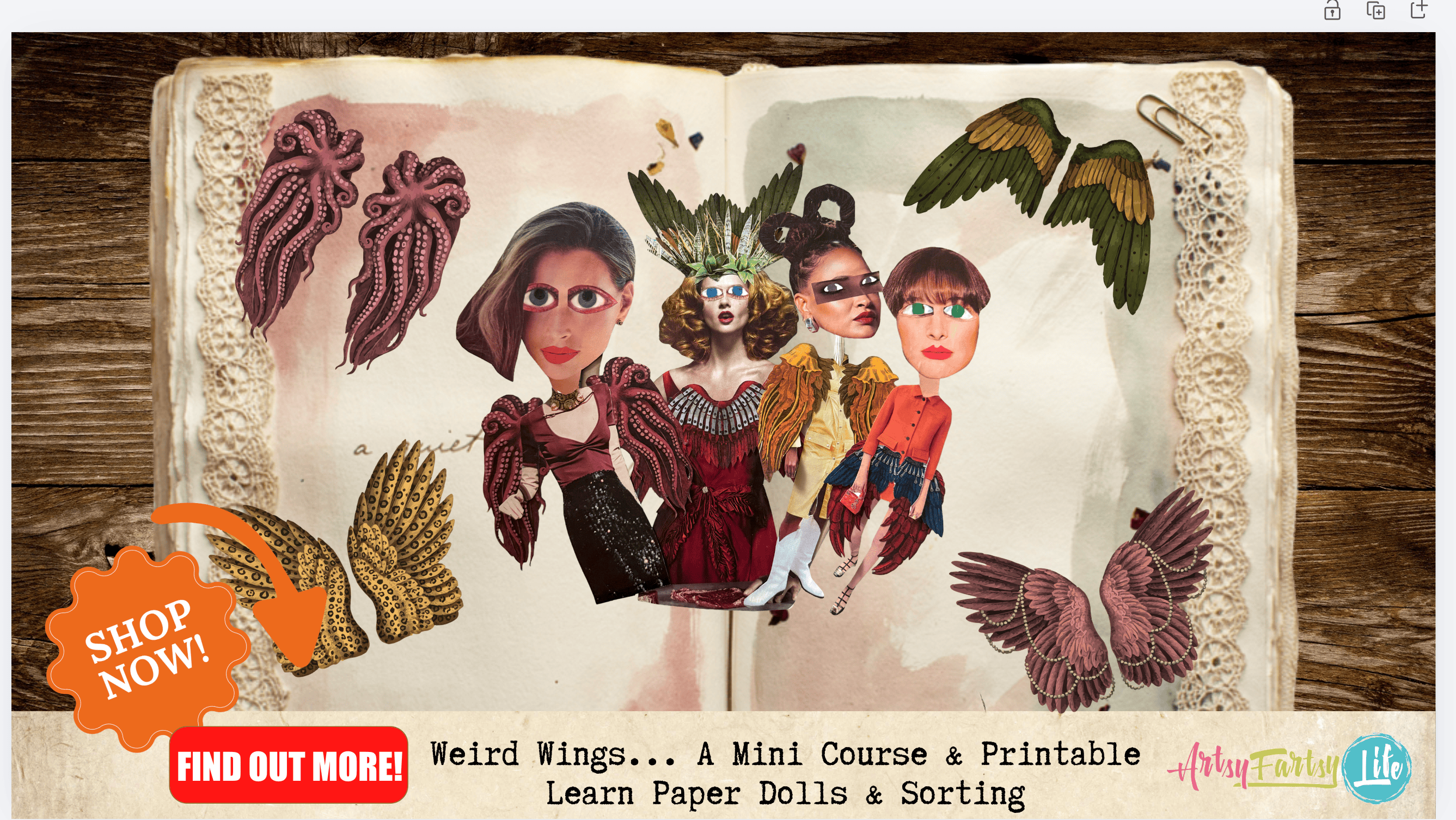
…to this, which is a great ad!
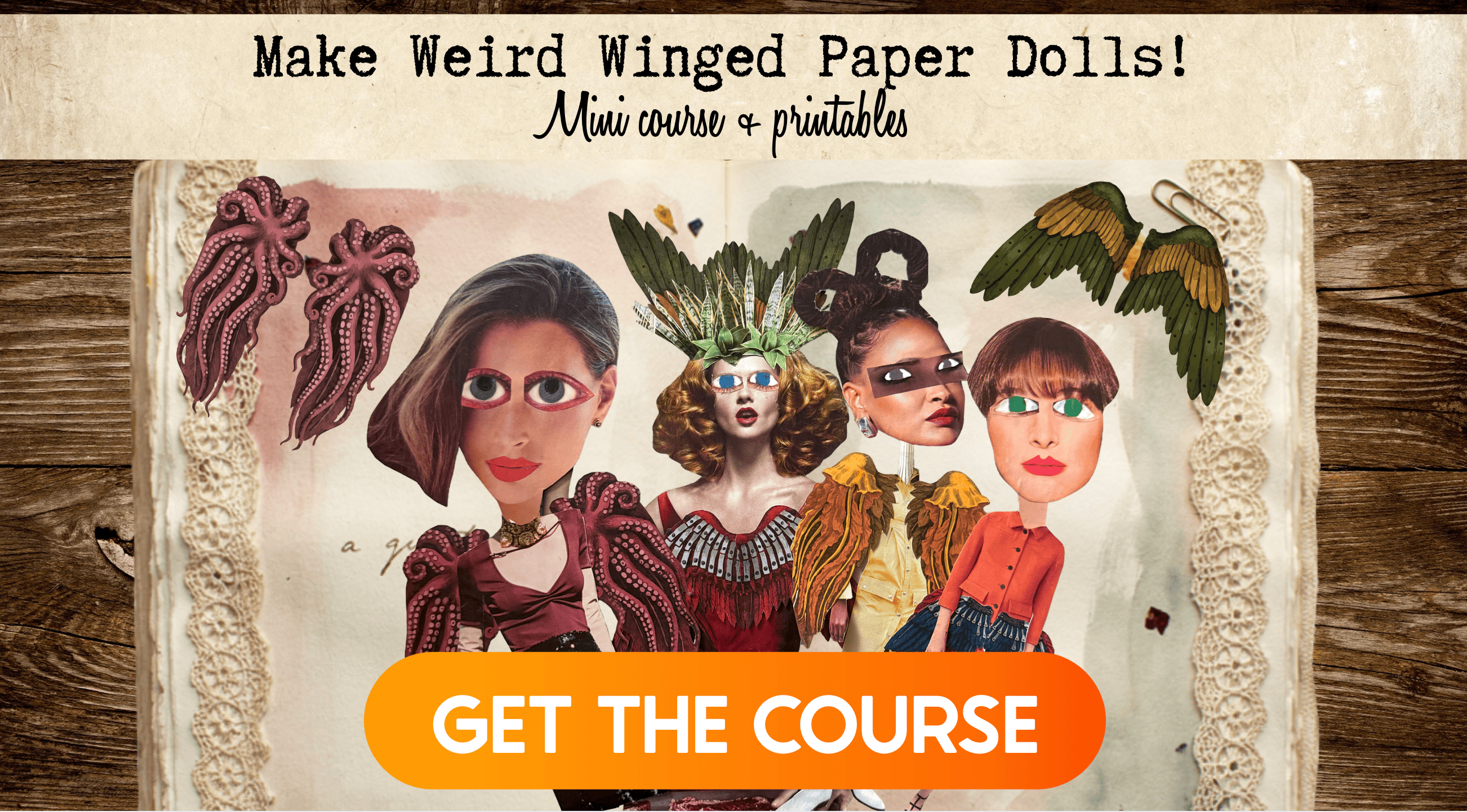
Do this today… Make a copy of one of your designs FIRST. Then ask your chat, “What would make this work better as a [pin / ad / social post]?” Be brave. Let it critique you!
6. Resize One Design Into Every Ad Size You Need
Mediavine house ads come in three sizes… 300×250, 728×90 and 320×50.
I had my chat resize my new ad into all three. Auto-resize got me about 90% of the way there. The skinny banners needed some rearranging, and one size had a little white gap.
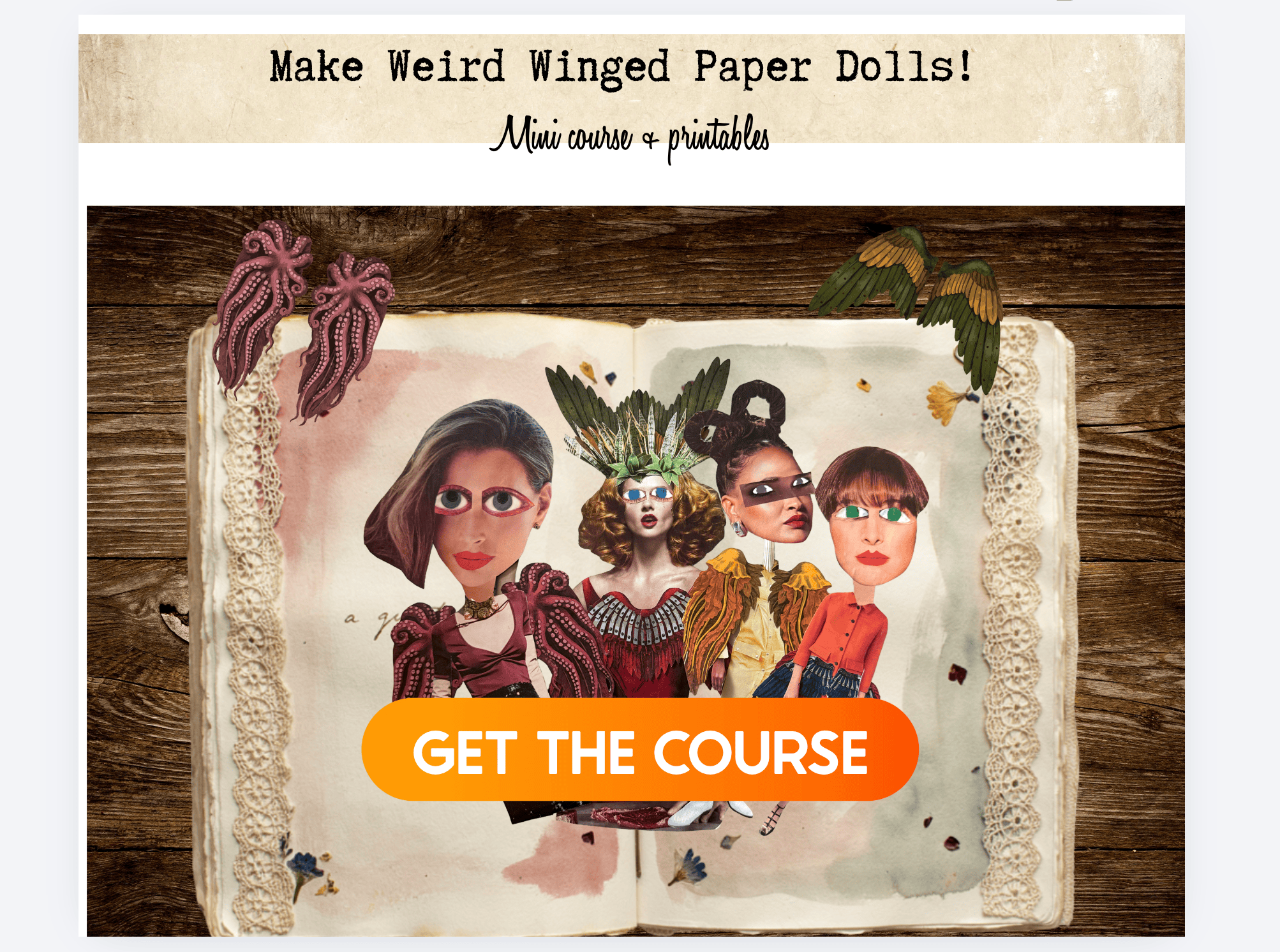
Three house ads done in minutes rather than an hour. BRILLIANT! Why was I so slow to do this when chat is so good at this kind of thing?
Do this today… Ask your chat to resize one design into every size you need. Then eyeball each size before you upload, because that last 10% is still your job.
7. Turn an Old Worksheet Into a Brand-New Printable
Confession time. When my chat suggested I get back to my aesthetics series, my first thought was UGH. Don’t those posts have worksheets? Where even ARE they? I didn’t have time to go digging through Canva, let alone make a new worksheet for every single aesthetic.
And then I remembered… my chat can find things for me. AND make design changes. AND write the content. Tra la, tra la!
So I asked. It found my Aesthetic Cores worksheet, made a copy, and turned it into a brand-new Nature Core page with a new title, description, journal prompts and self-care ideas.
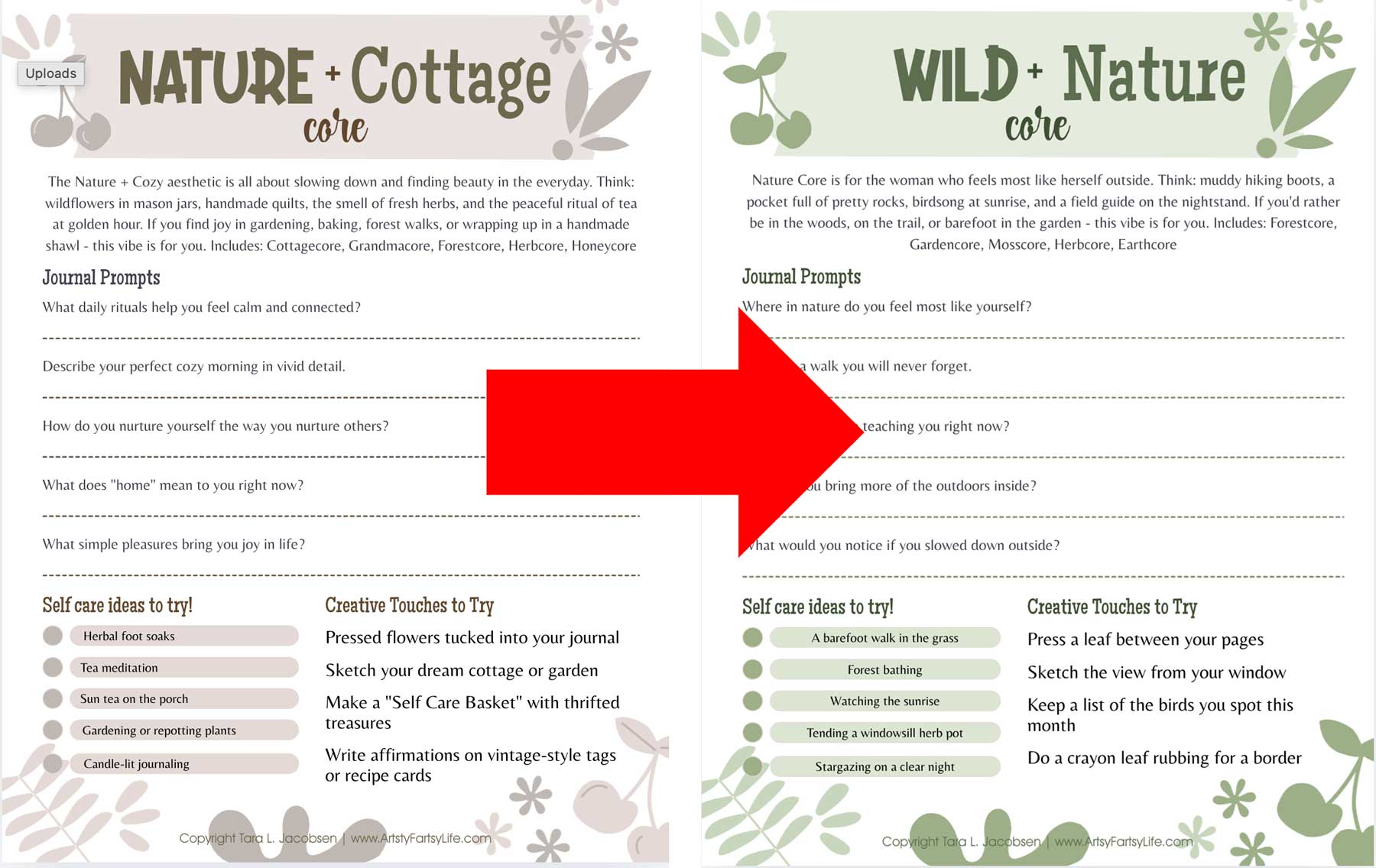
Do this today… Find one printable that did well for you and ask your chat to make a copy with a new topic. One old worksheet can turn into a whole series!
8. Catch the Typos You’ve Been Staring Past for a Year
While it was making that Nature Core worksheet, my chat caught a typo in my web address. A typo that has been sitting on those worksheets for over a year. Sigh.
And let me tell you, typos are sneaky. Ever had your pin with a typo become THE pin Pinterest picks to be the main pin for your post? Then you get to spend the next 2 years staring at that typo in your analytics. (Ask me how I know! 🙈)
Our eyes see what we MEANT to type. Your chat sees what you actually typed.
Do this today… Before you publish a pin or printable, ask your chat to “proofread every bit of text in this design, including the web address.”
9. Find the Designs You Swore You Lost
I can’t tell you how many peeps have told me over the years that they KNOW they made a design, but they just can’t find it!
Your chat can search your designs for you. I just ask, “find all my Weird Wings designs,” and there they are. It can also make folders and tuck things where they belong.
Do this today… Ask your chat to find every design for one product or topic and move them all into one folder. No more “I KNOW I made that… somewhere.”
10. Name Your Files Before You Upload Them
Confession number two. I organize everything in folders on my laptop… and then re-upload the same images to Canva over and over again. I have no idea how many copies of my logo are floating around in there!
So here’s my new plan, and I think it’s a smart one for you too… name your images BEFORE you upload them. Something like “nature-core-forest-walk.jpg” instead of “IMG_4827.jpg.”
When your files have real names, your chat can actually find them, whether you’re pulling photos for a roundup or swapping images on an old pin.
Do this today… Rename the photos for your next project before they go anywhere near Canva. It takes 2 minutes and saves you SO much hunting later.
11. Get Canva Design Ideas From Pins You Love
Can AI make a Canva template inspired by someone else’s pin?
I pulled up one of my friend Carly Campbell’s pins about pregnancy and asked Claude to make a version inspired by it, with a caregiver angle for my site.
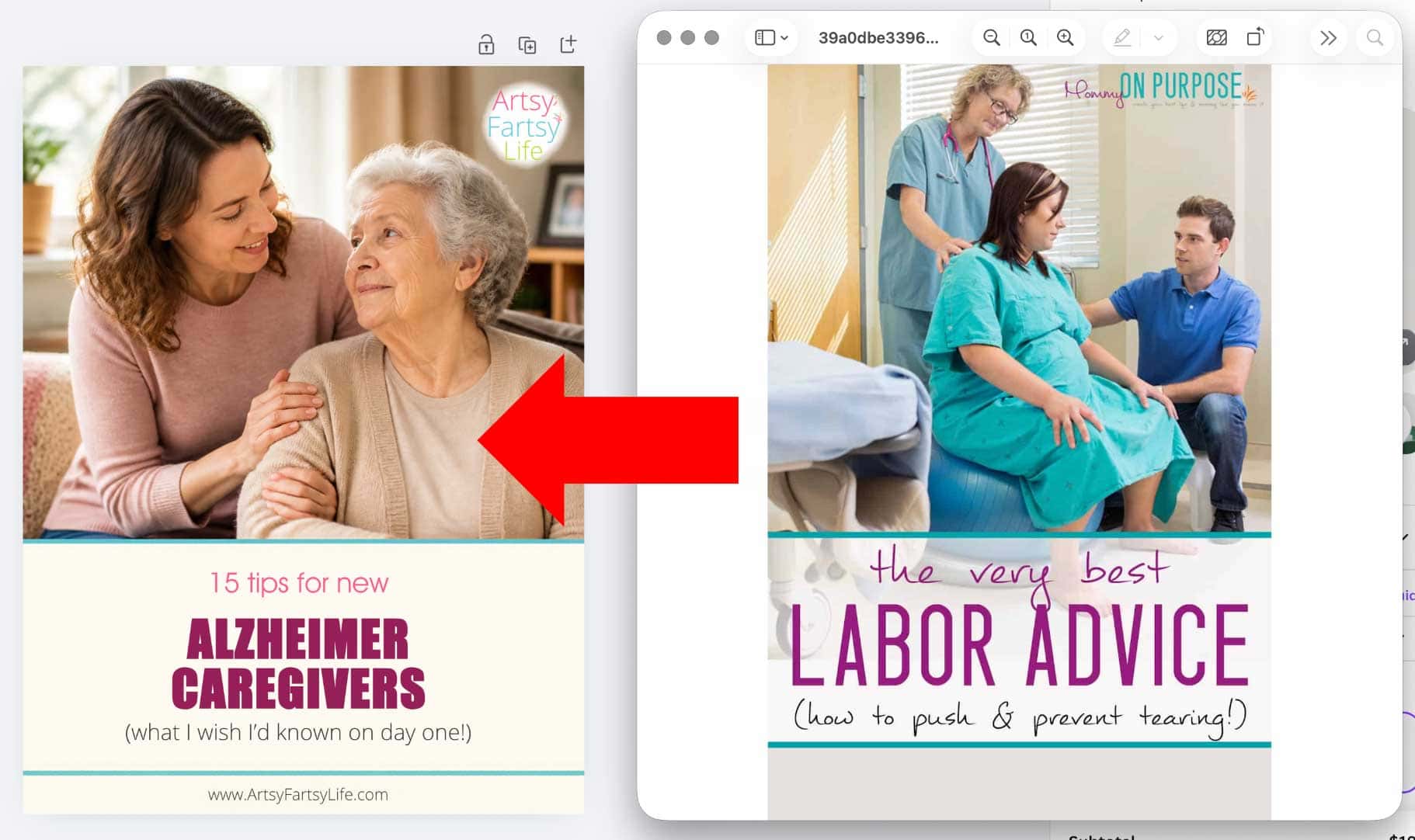
It was fine! But instead of spending the time (and credits), I’d just sign up for Carly’s library of templates that she already has built. If you’re wondering what kind of Pinterest pins to make, a library of tested designs is a great shortcut.
And having your own templates that you’ve designed and used in the past? That’s chef’s kiss!
Do this today… Save 3 pins you love and write down WHY you love them (the colors? the layout? the fonts?). Use those notes for your own Canva design ideas instead of copying the pin.
Wrap-Up… Let AI Do the Fiddly Stuff
So here’s what I’ve learned… AI isn’t going to replace your gorgeous Canva templates. It makes them work harder. My chat swaps the pictures, rewrites the text, changes the colors, resizes everything for ads, and even finds the designs I swore I’d lost. I still get to do the fun creative part, and it does the fiddly stuff.
If you’re just getting started, my Canva tutorial for Pinterest pins covers the basics. And if you want to see how I hooked Canva up to my chat in the first place, check out my post on connecting your marketing tools to AI.
And if you don’t have Canva templates of your own yet? Don’t start from scratch. Grab a library that’s already built (I love Carly’s!) and let your chat do the customizing.
Want a little inspiration? One of my all-time favorite books for creatives is Steal Like an Artist by Austin Kleon. It’s all about learning from the work you admire and making it your own, which is exactly what we’re doing when we start from a great template! It’s a quick, fun read, and it’s even better as an audiobook. Grab it on Audible here.
You got this! 💛
The post Canva Templates + AI… 11 Things My Chat Does in Canva So I Don’t Have To appeared first on Marketing Artfully.
Source: https://marketingartfully.com/canva-templates-ai-11-things-my-chat-does-in-canva-so-i-dont-have-to/
Anyone can join.
Anyone can contribute.
Anyone can become informed about their world.
"United We Stand" Click Here To Create Your Personal Citizen Journalist Account Today, Be Sure To Invite Your Friends.
Before It’s News® is a community of individuals who report on what’s going on around them, from all around the world. Anyone can join. Anyone can contribute. Anyone can become informed about their world. "United We Stand" Click Here To Create Your Personal Citizen Journalist Account Today, Be Sure To Invite Your Friends.
LION'S MANE PRODUCT
Try Our Lion’s Mane WHOLE MIND Nootropic Blend 60 Capsules
Mushrooms are having a moment. One fabulous fungus in particular, lion’s mane, may help improve memory, depression and anxiety symptoms. They are also an excellent source of nutrients that show promise as a therapy for dementia, and other neurodegenerative diseases. If you’re living with anxiety or depression, you may be curious about all the therapy options out there — including the natural ones.Our Lion’s Mane WHOLE MIND Nootropic Blend has been formulated to utilize the potency of Lion’s mane but also include the benefits of four other Highly Beneficial Mushrooms. Synergistically, they work together to Build your health through improving cognitive function and immunity regardless of your age. Our Nootropic not only improves your Cognitive Function and Activates your Immune System, but it benefits growth of Essential Gut Flora, further enhancing your Vitality.
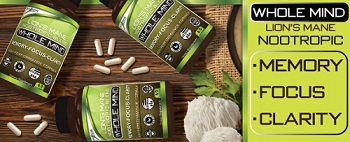
Our Formula includes: Lion’s Mane Mushrooms which Increase Brain Power through nerve growth, lessen anxiety, reduce depression, and improve concentration. Its an excellent adaptogen, promotes sleep and improves immunity. Shiitake Mushrooms which Fight cancer cells and infectious disease, boost the immune system, promotes brain function, and serves as a source of B vitamins. Maitake Mushrooms which regulate blood sugar levels of diabetics, reduce hypertension and boosts the immune system. Reishi Mushrooms which Fight inflammation, liver disease, fatigue, tumor growth and cancer. They Improve skin disorders and soothes digestive problems, stomach ulcers and leaky gut syndrome. Chaga Mushrooms which have anti-aging effects, boost immune function, improve stamina and athletic performance, even act as a natural aphrodisiac, fighting diabetes and improving liver function. Try Our Lion’s Mane WHOLE MIND Nootropic Blend 60 Capsules Today. Be 100% Satisfied or Receive a Full Money Back Guarantee. Order Yours Today by Following This Link.


| Visits: | 1,839,488,405 |
| Stories: | 8,742,366 |
Whistler Blowers, Insiders

