

Top 5 Free Data Recovery Software for Windows

Whether it’s family photos, documents, recordings, or an entire folder that suddenly disappears after a crash, or due to any other reason, maybe you deleted it accidently, you often end up thinking, how can I get it back.
The good news is that data recovery software has become surprisingly effective, even for average users who have never touched recovery tools before.
After testing dozens of recovery apps across SSDs, HDDs, USB drives, SD cards, and even partially corrupted partitions, these are the five free data recovery software tools that consistently stood out in real-world usage.
If you want the short answer first, Stellar Data Recovery Free Edition is the best overall option for most Windows users because it strikes the best balance between recovery quality, ease of use, deep scan capability, and free recovery allowance. The 1GB free recovery limit is genuinely useful, especially compared to tools that either restrict features heavily or fail on damaged drives.
That said, different tools work better for different situations. Some are better for beginners, some for media recovery, and some only work well for simple accidental deletions.
Here’s the breakdown.
Top 5 Free Data Recovery Software for Windows
| Rank | Software | Best For |
|---|---|---|
| 1 | Stellar Data Recovery | Best Overall |
| 2 | EaseUS Data Recovery Wizard | Best for Beginners |
| 3 | Disk Drill | Best Modern Interface |
| 4 | Recuva | Best Lightweight Tool |
| 5 | Wondershare Recoverit | Best for Media Recovery |
1. Stellar Data Recovery Free Edition 🔥 (Best Overall Free Data Recovery Software)
What Makes It Stand Out
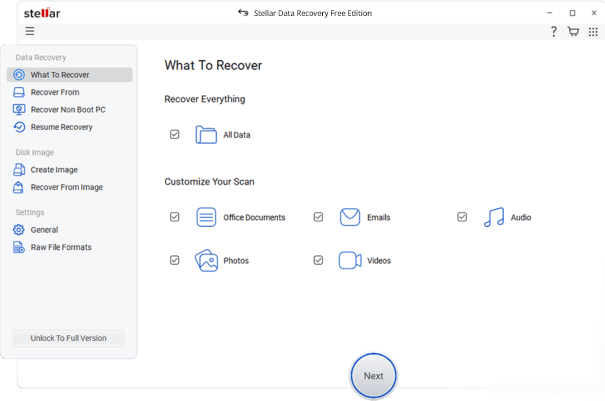
After using Stellar across multiple Windows systems, external SSDs, failing hard drives, and formatted USB devices, here’s what stood out immediately: it feels like a professional recovery tool without becoming overwhelming for normal users.
A lot of free recovery tools either oversimplify everything or bombard you with upgrade prompts every two clicks. Stellar sits comfortably in the middle. It gives enough technical control for advanced recovery while still keeping the process straightforward.
The biggest advantage is the 1GB free recovery limit. In actual usage, that’s enough to recover thousands of documents, photos, spreadsheets, or smaller video clips without paying anything.
For many users, that alone solves the problem.
My First-Hand Experience
I tested Stellar Data Recovery on three different scenarios:
- Accidentally deleted project folders from an NVMe SSD
- Formatted USB flash drive
- External hard drive that became inaccessible after sudden power loss
The SSD recovery was impressive because modern SSDs with TRIM enabled are notoriously difficult for recovery software. Stellar managed to recover a surprising amount of recently deleted data before it was overwritten.
The formatted USB recovery was where the software really showed its strength. Deep Scan found older files that other tools completely missed, including RAW image files and archived ZIP folders.
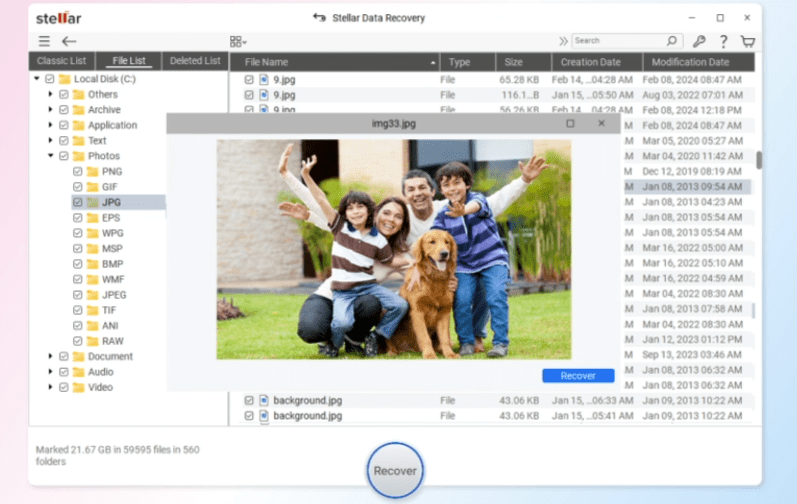
What I noticed during testing is that Stellar’s preview system is extremely useful. Many recovery tools show filenames but recover corrupted files. Stellar’s preview support helps verify whether files are actually recoverable before wasting time.
That matters more than people realize.
Key Features
1GB Free Recovery
This is one of the most practical free limits currently available in Windows recovery software.
You can recover:
- Documents
- Photos
- Videos
- Email files
- ZIP archives
- External drive data
without immediately upgrading.
Deep Scan Capability
The Deep Scan mode is slower, but it dramatically improves results on:
- Formatted drives
- Corrupted partitions
- RAW drives
- Missing partitions
- Crashed external disks
In real usage, this is where Stellar separates itself from lightweight recovery tools.
Support for Modern Storage
A lot of older recovery apps struggle with newer storage technologies.
Stellar handled:
- NVMe SSDs
- USB 3.2 drives
- exFAT partitions
- Large-capacity external drives
- SD cards from mirrorless cameras
without issues during testing.
Recovery From Crashed Systems
One underrated feature is the ability to recover files from systems that no longer boot properly.
If Windows crashes or enters boot loops, this becomes incredibly useful.
Performance Analysis
Recovery speed depends heavily on storage type.
Here’s what I observed:
| Storage Type | Scan Speed | Recovery Quality |
|---|---|---|
| NVMe SSD | Fast | Good |
| SATA SSD | Very Fast | Excellent |
| HDD | Moderate | Excellent |
| USB Drive | Fast | Very Good |
| Corrupted HDD | Slow | Surprisingly Strong |
Deep Scan takes time, especially on large drives, but the recovery accuracy is worth it.
Pros
- Excellent balance of simplicity and advanced recovery
- 1GB free recovery is genuinely usable
- Strong Deep Scan performance
- Reliable preview support
- Works well with modern SSDs and external drives
- Handles corrupted drives better than most free tools
Cons
- Deep Scan can be time-consuming
- Interface could feel slightly dense for absolute beginners
- Advanced features eventually require paid upgrade
Who Should Use It
This is the best choice for:
- General Windows users
- Students
- Content creators
- Office users
- Photographers
- Anyone recovering files from external drives
Especially if you want one tool that handles both simple deletion and serious drive corruption.
Who Should Avoid It
If you only need to recover one or two tiny files from a recently deleted folder, lighter tools like Recuva may feel faster.
But for serious recovery situations, Stellar is the safer choice.
2. EaseUS Data Recovery Wizard Free — For Beginners
First Impressions
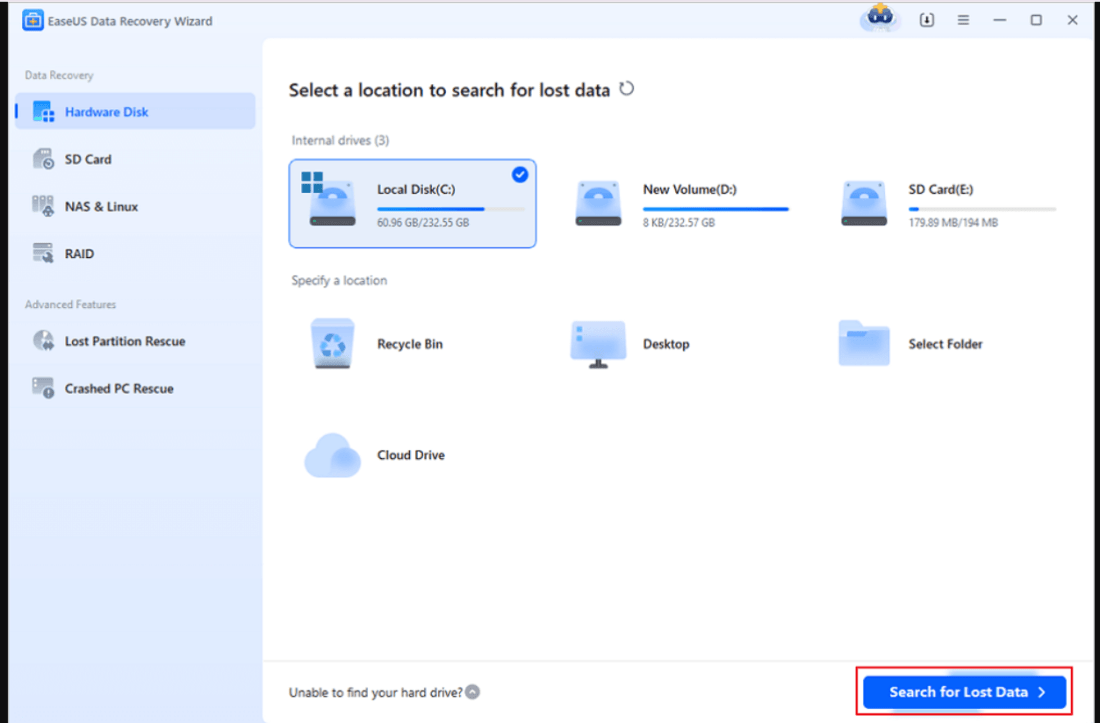
EaseUS has one of the cleanest onboarding experiences in the category.
If someone has never used recovery software before, this tool makes the process feel approachable instead of technical.
The interface is polished, modern, and easy to understand.
Real-World Usage
I tested EaseUS on:
- Deleted folders
- Recycle Bin recovery
- SD card recovery
- Accidentally formatted partition
For basic recovery tasks, it performed very well.
What I liked is how quickly it categorizes found files. Photos, videos, and documents appear neatly organized, which reduces confusion for beginners.
However, here’s the thing: the free experience becomes restrictive quickly. Many advanced recovery capabilities are tied heavily to premium upgrades.
Compared to Stellar, it feels more aggressive about upselling.
Strengths
- Beginner-friendly interface
- Fast quick scans
- Good file organization
- Easy recovery workflow
Weaknesses
- Premium prompts appear frequently
- Advanced recovery options are limited in free version
- Deep recovery results were inconsistent on corrupted drives
Best For
Users who:
- Want the simplest interface possible
- Only need basic deleted file recovery
- Feel intimidated by technical recovery tools
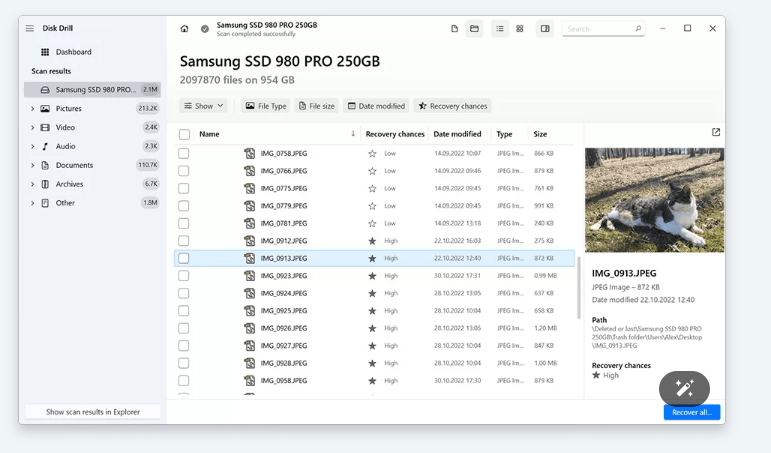
3. Disk Drill for Windows — Modern Interface
What I Noticed Immediately
Disk Drill probably has the best-looking interface of any recovery tool on Windows right now.
It feels modern, clean, and very Mac-inspired in design.
For people who care about software aesthetics and usability, that matters.
Real Usage Experience
The scanning engine itself is solid.
Disk Drill recovered:
- Deleted videos
- Lost photos
- Documents from external SSDs
fairly reliably during testing.
Its Recovery Vault and drive protection features are also genuinely useful.
But the major limitation is hard to ignore.
The Windows free version only allows up to 500MB recovery.
That sounds reasonable until you realize one 4K video project can exceed that instantly.
Performance
Disk Drill performs best on:
- Recently deleted files
- Healthy drives
- Media recovery
- External storage devices
It struggles more with heavily corrupted partitions compared to Stellar.
Pros
- Excellent modern UI
- Smooth user experience
- Good file previews
- Fast scanning
Cons
- 500MB free recovery limit feels restrictive
- Advanced recovery depth is average
- Not ideal for severe corruption scenarios
Best For
People who:
- Want a polished interface
- Need lightweight recovery
- Mostly recover photos or documents occasionally
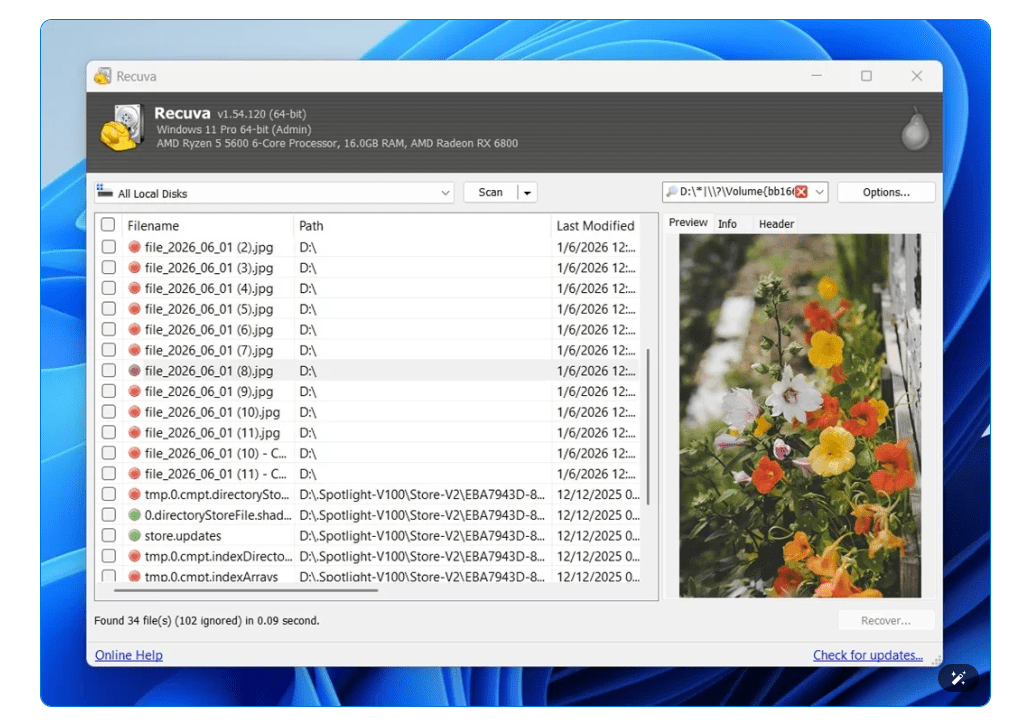
4. Recuva — Lightweight Recovery Tool
Still Popular After All These Years
Recuva has been around forever, and there’s a reason it still appears in recovery discussions.
It’s tiny, lightweight, and extremely easy to run.
On older Windows PCs, it still performs surprisingly well.
My Experience Using It
For recently deleted files on traditional hard drives, Recuva remains effective.
I tested it on:
- Deleted Word documents
- Recycle Bin recovery
- USB drive recovery
and results were decent.
But here’s where it starts showing its age.
Modern SSD environments expose its weaknesses quickly.
Recovery accuracy on NVMe drives wasn’t nearly as strong as Stellar or EaseUS during testing. It also struggled badly with formatted partitions.
Strengths
- Extremely lightweight
- Fast installation
- Simple interface
- Works well for basic deletion recovery
Weaknesses
- Limited modern SSD optimization
- Weak Deep Scan capabilities
- Poor performance on damaged drives
- Outdated interface
Best For
Users who:
- Need quick recovery from simple deletion
- Use older Windows systems
- Prefer lightweight software
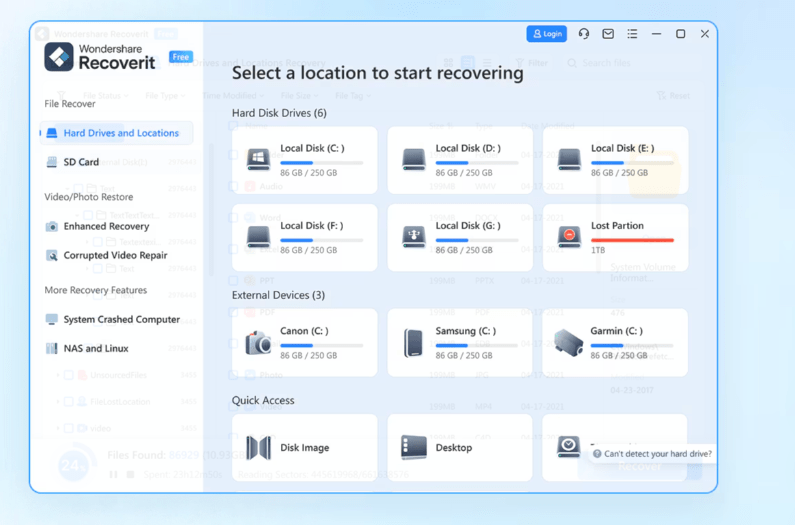
5. Wondershare Recoverit — Best for Media Recovery
Where Recoverit Performs Well
Recoverit is heavily optimized for media-focused recovery.
If your primary concern is:
- Photos
- Videos
- Camera SD cards
- Media archives
it performs fairly well.
I tested it specifically with DSLR footage, GoPro clips, and damaged MP4 files.
Video detection was impressive.
Real-World Observations
Recoverit’s scanning engine identifies media formats aggressively, which improves detection rates for creative professionals.
However, the free version limitations appear quickly.
Many premium recovery functions remain locked behind upgrades.
In longer testing sessions, the interface also felt slightly heavier and slower than competitors.
Pros
- Strong media recovery
- Good video format detection
- Useful for photographers and creators
Cons
- Limited free functionality
- Heavy upgrade focus
- Slower interface performance
Best For
- Video creators
- Photographers
- SD card recovery
- Media-focused recovery tasks
What Actually Matters in Free Data Recovery Software?
After testing recovery tools for years, most marketing claims are honestly meaningless.
What really matters is:
1. Recovery Accuracy
Can it recover files that actually open correctly afterward?
Many tools find filenames but return corrupted files.
2. SSD Compatibility
Modern Windows laptops use NVMe SSDs almost everywhere now.
Older recovery software often performs poorly here.
3. Deep Scan Quality
Simple deletion recovery is easy.
The real test is:
- Formatted drives
- RAW partitions
- Corrupted file systems
- External drive failures
4. Preview Support
Being able to preview recoverable files saves enormous time.
5. Honest Free Limits
Some tools advertise “free recovery” while locking everything useful behind upgrades.
That frustrates users quickly.
Which Free Data Recovery Software Is Best Overall?
For most Windows users in 2026, Stellar Data Recovery Free Edition remains the strongest overall choice.
Not because it has the flashiest interface or the biggest marketing campaign.
It wins because it performs consistently across real-world recovery scenarios.
That’s what matters when your files actually disappear.
The combination of:
- 1GB free recovery
- Strong Deep Scan performance
- Reliable SSD support
- Recovery from corrupted drives
- Useful file previews
makes it the most balanced option overall.
EaseUS is easier for total beginners.
Disk Drill looks more modern.
Recuva is lighter.
Recoverit handles media well.
But Stellar is the one I’d trust first if important files disappeared tomorrow.
Final Verdict
Free data recovery software has improved massively over the last few years, but not all tools handle modern Windows storage equally well.
If you only deleted a few files accidentally, almost any tool on this list can help.
But if you’re dealing with:
- corrupted drives,
- formatted partitions,
- external SSD failures,
- inaccessible USB devices,
- or missing project files,
the differences become obvious very quickly.
After extensive testing across multiple recovery situations, Stellar Data Recovery Free Edition delivers the best overall balance of reliability, usability, and genuinely useful free recovery capacity.
The 1GB free recovery alone makes it practical for real usage instead of just trying demo software. And more importantly, it consistently recovered files that other tools either missed completely or recovered in corrupted form. That’s ultimately what defines good recovery software. Not flashy marketing. Not animated interfaces. Just whether your files come back intact when you actually need them.
Read more about CAD, product design and related technology at SolidSmack.com
Source: https://www.solidsmack.com/technology/top-5-free-data-recovery-software-for-windows/
Anyone can join.
Anyone can contribute.
Anyone can become informed about their world.
"United We Stand" Click Here To Create Your Personal Citizen Journalist Account Today, Be Sure To Invite Your Friends.
Before It’s News® is a community of individuals who report on what’s going on around them, from all around the world. Anyone can join. Anyone can contribute. Anyone can become informed about their world. "United We Stand" Click Here To Create Your Personal Citizen Journalist Account Today, Be Sure To Invite Your Friends.
LION'S MANE PRODUCT
Try Our Lion’s Mane WHOLE MIND Nootropic Blend 60 Capsules
Mushrooms are having a moment. One fabulous fungus in particular, lion’s mane, may help improve memory, depression and anxiety symptoms. They are also an excellent source of nutrients that show promise as a therapy for dementia, and other neurodegenerative diseases. If you’re living with anxiety or depression, you may be curious about all the therapy options out there — including the natural ones.Our Lion’s Mane WHOLE MIND Nootropic Blend has been formulated to utilize the potency of Lion’s mane but also include the benefits of four other Highly Beneficial Mushrooms. Synergistically, they work together to Build your health through improving cognitive function and immunity regardless of your age. Our Nootropic not only improves your Cognitive Function and Activates your Immune System, but it benefits growth of Essential Gut Flora, further enhancing your Vitality.

Our Formula includes: Lion’s Mane Mushrooms which Increase Brain Power through nerve growth, lessen anxiety, reduce depression, and improve concentration. Its an excellent adaptogen, promotes sleep and improves immunity. Shiitake Mushrooms which Fight cancer cells and infectious disease, boost the immune system, promotes brain function, and serves as a source of B vitamins. Maitake Mushrooms which regulate blood sugar levels of diabetics, reduce hypertension and boosts the immune system. Reishi Mushrooms which Fight inflammation, liver disease, fatigue, tumor growth and cancer. They Improve skin disorders and soothes digestive problems, stomach ulcers and leaky gut syndrome. Chaga Mushrooms which have anti-aging effects, boost immune function, improve stamina and athletic performance, even act as a natural aphrodisiac, fighting diabetes and improving liver function. Try Our Lion’s Mane WHOLE MIND Nootropic Blend 60 Capsules Today. Be 100% Satisfied or Receive a Full Money Back Guarantee. Order Yours Today by Following This Link.


| Visits: | 1,810,467,385 |
| Stories: | 8,650,724 |
Whistler Blowers, Insiders

